
Connections
Discover how Connections remote desktop client simplifies cross-platform workspace access. Read our full review of this elegant Linux application.
While many remote desktop tools overwhelm users with complex configuration panels and cluttered interfaces, the Connections remote desktop client stands out by embracing elegant simplicity. Developed by The GNOME Project, this native Linux application is designed to do one thing exceptionally well: provide a clean, distraction-free window into your other workstations and virtual environments.
What is the Connections Remote Desktop Client?
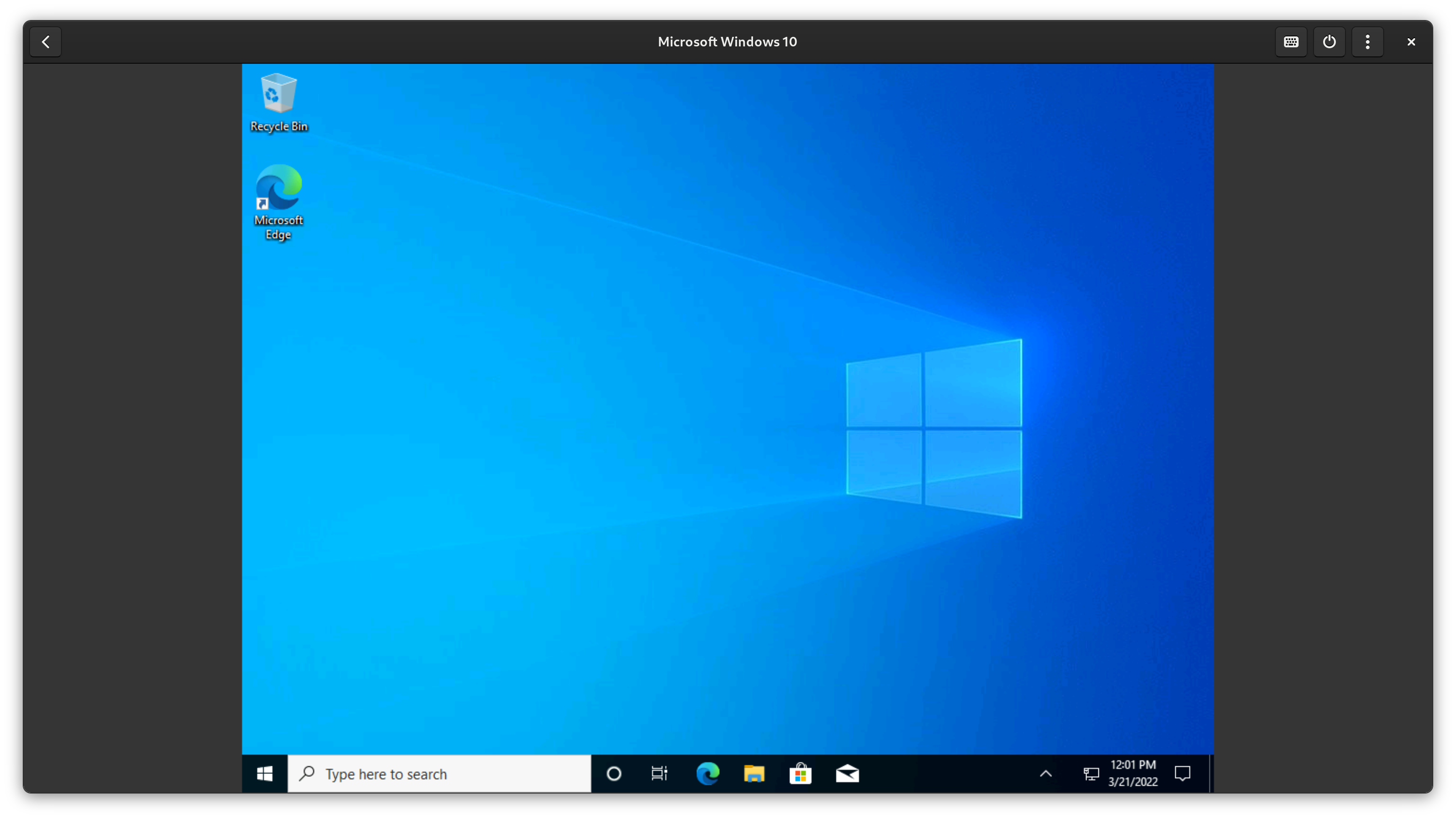
At its core, the Connections remote desktop client is a streamlined viewer that allows you to access and interact with external systems. Whether you need to retrieve a forgotten file from a physical machine in another room, manage a headless server, or provide remote assistance to a colleague, this utility bridges the gap between your local peripheral setup and remote operating systems.
Key Features and Protocol Support
Despite its minimalist appearance, the application is highly capable and supports the industry standards required for reliable remote administration:
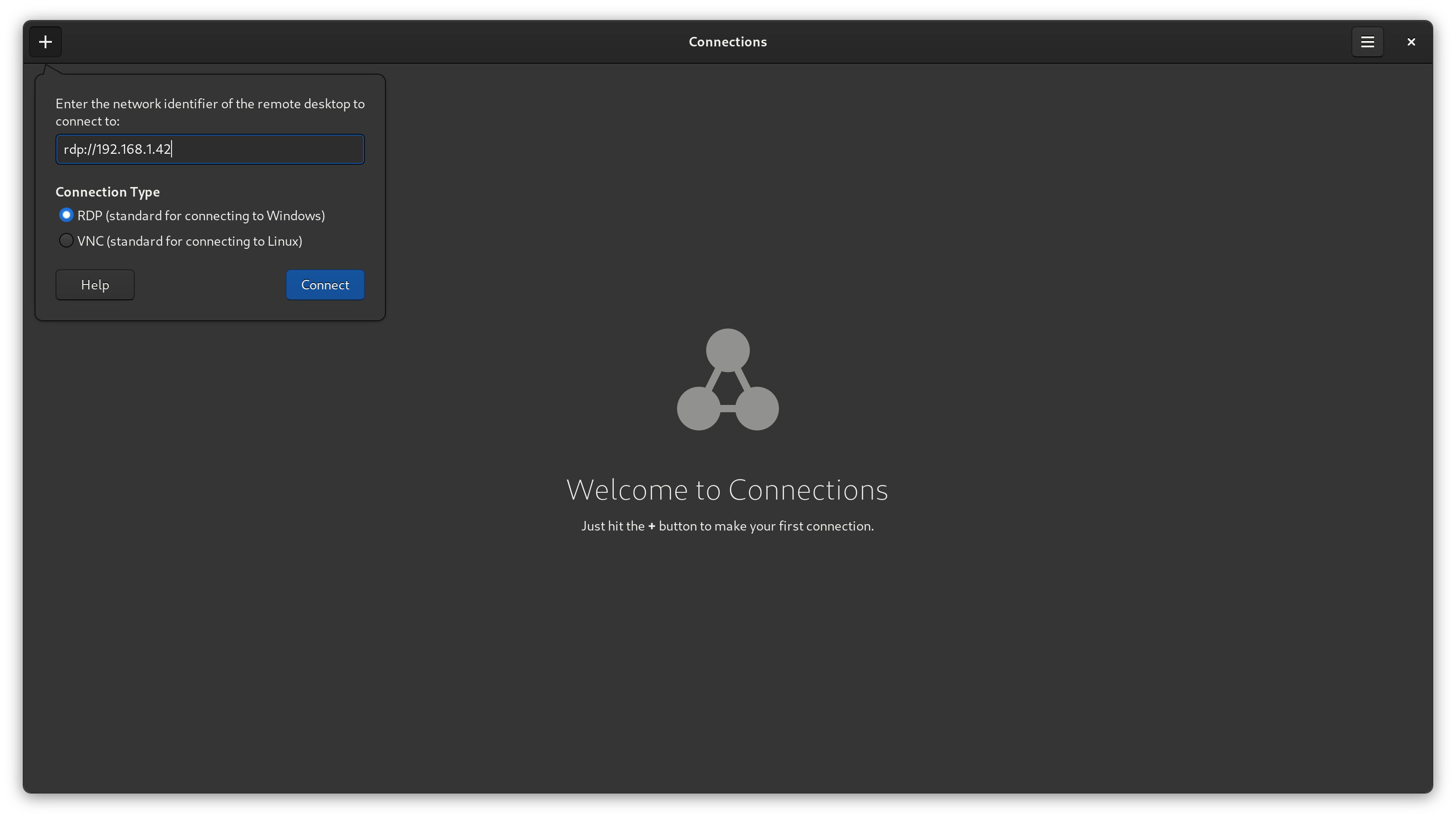
- Multi-Protocol Compatibility: Out of the box, it supports both VNC (Virtual Network Computing) and RDP (Remote Desktop Protocol). This ensures seamless connections to a wide range of target systems.
- Cross-Platform Reach: You can effortlessly connect to Linux desktops, Windows environments, and various virtual machines.
- Streamlined UX: True to the GNOME design philosophy, the interface minimizes friction, allowing you to save your frequent connections and access them in a click.
Who is the Connections Remote Desktop Client For?
This software is an ideal match for Linux users who value system integration and straightforward usability over bloated feature sets. It is particularly useful for system administrators managing diverse local networks, developers testing software across virtualized operating systems, and support staff who require a quick, dependable portal to assist remote users.
Getting Started
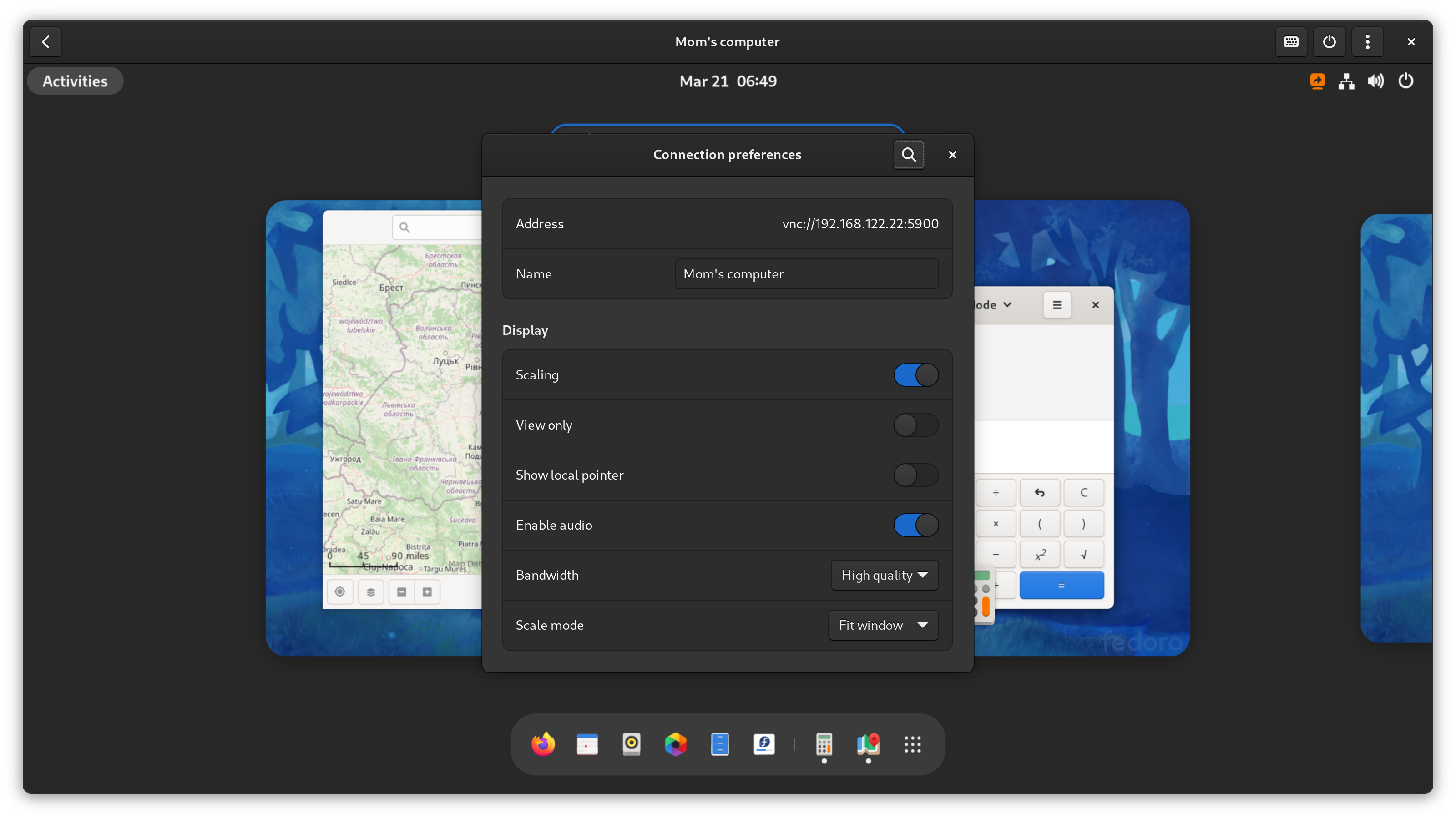
To establish a session, you simply need to ensure that RDP or VNC is enabled on your target desktop. Once active, input the network address into the Connections remote desktop client to begin your remote session. It provides a fluid, responsive experience that makes working on a remote machine feel native.
If you are looking for a clean, efficient way to manage your remote systems without the hassle of heavy third-party suites, we highly recommend trying this utility. You can explore more details and find installation options directly on the official Flathub store page.